Use the dealership invitation or your existing individual account.
You can identify the correct account and location.
Find the work
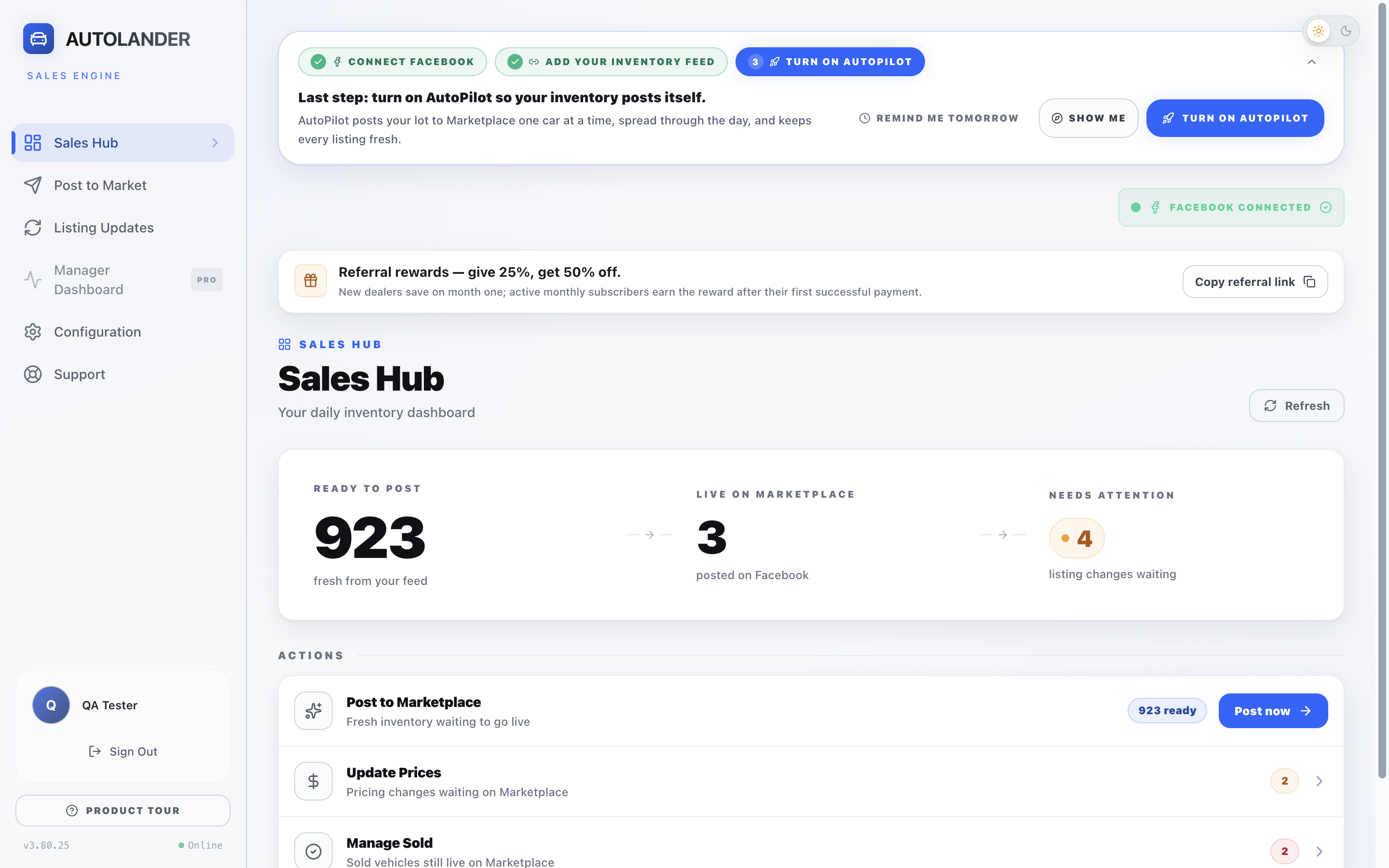
Locate Post to Market, Listing Updates, Configuration and Product Tour.
You can return to the right screen without a prompt.
Check readiness
Facebook, inventory, vehicle facts, allowance and a running online computer.
You can explain any item that still needs attention.
Follow one task
Select an intended vehicle; understand Queue and the final result.
You can explain the steps without publishing just for practice.
Use the workbook
Mark independent, needs coaching, blocked by setup/access, or not your role.
The next practice or setup owner is clear.
Use the resources together
Manual: a fast answer while you work. Use Contents or the troubleshooting pages.
Training: watch the specific lesson ID beside the task, then try a different example.
Workbook: record what you demonstrated, what needs help and the next action.
Demo: an overview for someone evaluating AutoLander, not the detailed operating procedure.
No live posting, deleting, buying or messaging is required just to complete learning. Use intended business actions only when you are ready and authorized.
Start / Sales rep guide
Your map of AutoLander
Start with the left sidebar. Find the task before changing a setting.
Open your browser's Downloads page. Verify the expected AutoLander installer came from autolander.ai. Use Keep only if offered for that trusted download. Choose Show in Folder or Open Containing Folder, then double-click the installer.
If Windows says "Windows protected your PC"
For the trusted, expected official installer, choose More info, then Run anyway only if offered and your organization permits it. An unknown-publisher message is not a safety guarantee.
Finish the normal Windows setup
Choose who can use the appChoose Only for me for your own Windows login unless IT directs otherwise. Select Next.
Keep the default locationLeave the destination folder unchanged unless your organization directs otherwise. Select Install and wait for installation to finish.
Open AutoLanderLeave Run AutoLander checked, then select Finish. Use your existing or invited AutoLander account.
If the ordinary allowed steps still fail, send the exact warning, official download source and operating system to dealership IT; personal-computer users contact AutoLander Support. Screen wording can vary by installer and Windows version.
Microsoft recommends keeping SmartScreen protection enabled. See the reference links at the back of this guide.
Set up / Sales rep guide
Check Facebook in two places
First setup: Configuration. Every working day: the top-right indicator.
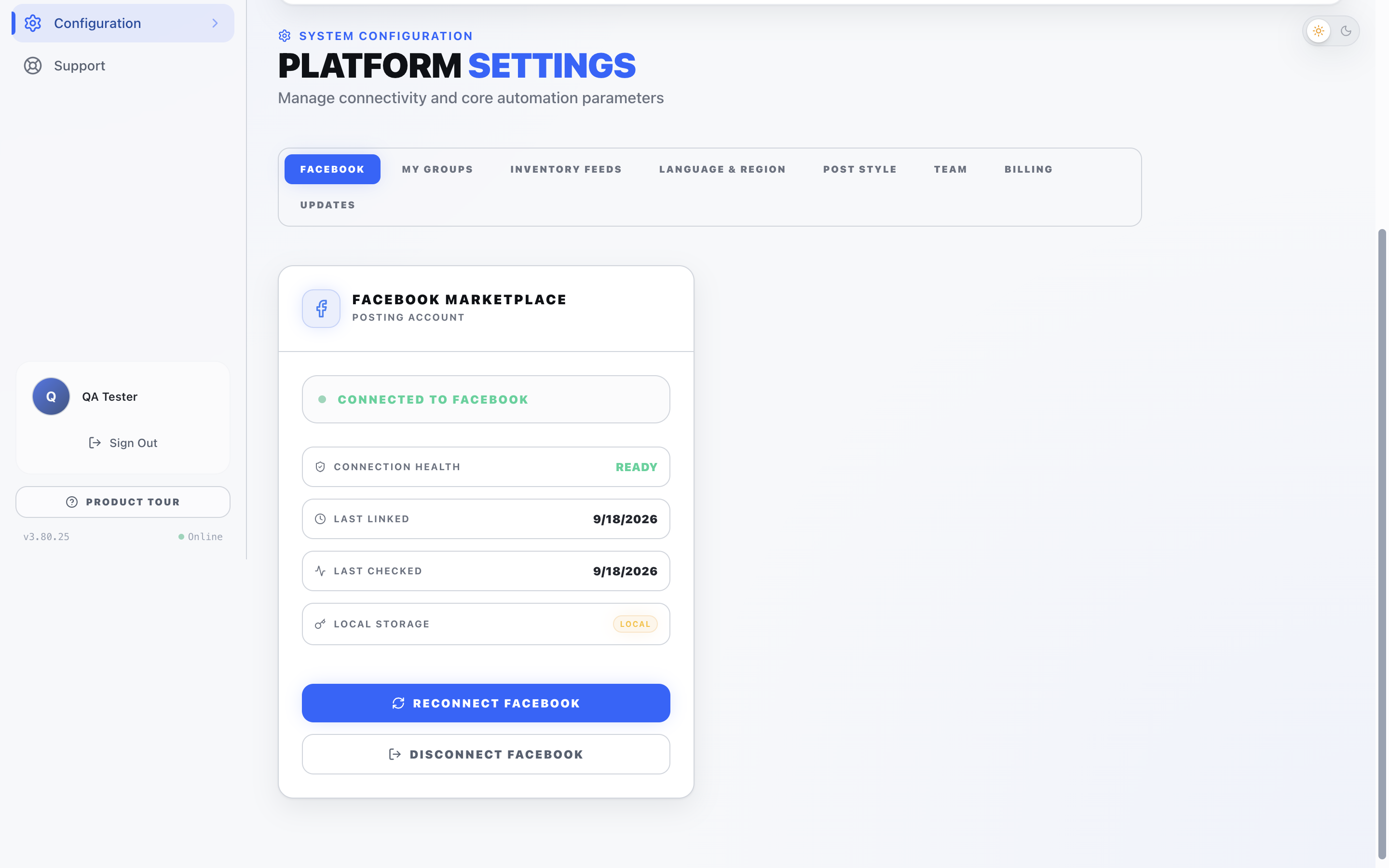
1 Configuration. 2 Facebook tab. 3 Reconnect. A first connection instead shows Connect Facebook. Open image for full resolution.
Before the first postFrom Sales Hub, click Configuration in the left sidebar, then Facebook. Choose Connect Facebook and use the personal profile you intend to use for Marketplace, not a dealership Business Page.
Finish privatelyComplete Facebook sign-in and any security check. Return to AutoLander and read the connection state.
Check laterUse Facebook Connected at the top right. If the session expires, return to Configuration > Facebook > Reconnect Facebook. Recheck the state.
If Facebook itself denies Marketplace access, resolve that issue with Facebook. For an app connection problem, dealer-account users contact their manager; individual users contact the AutoLander admin through Support.
Operate / Sales rep guide
Find the right vehicle
Left sidebar > Post to Market > Available. Confirm the source before the selection.
Check the dealershipMake sure the inventory belongs to the location you intend to advertise. Compare three familiar vehicles with your dealership's information.
Search deliberatelyUse the search box for VIN or model and the filters above the cards. Clear a search or filter before assuming a vehicle is missing.
Read the factsCheck vehicle identity, price and mileage against the approved source. A photo treatment cannot correct missing or wrong facts.
Resolve a mismatchOn a dealer account, tell your manager. On an individual account, contact the AutoLander admin through Support. Do not start a post for the wrong source.
If you manage your own feed
Go to Configuration > Inventory Feeds. B1 shows Website Scrape and Data Feed. Check an existing connection first. Do not add a duplicate feed to make a missing vehicle appear.
If the source itself is wrong, have the responsible person correct it there. If the source is correct but AutoLander differs, send the comparison through the proper help route. Do not assume an exact feed-refresh interval.
Operate / Sales rep guide
Select and post with confidence
Post to Market > Available > selection boxes > Post to Marketplace.
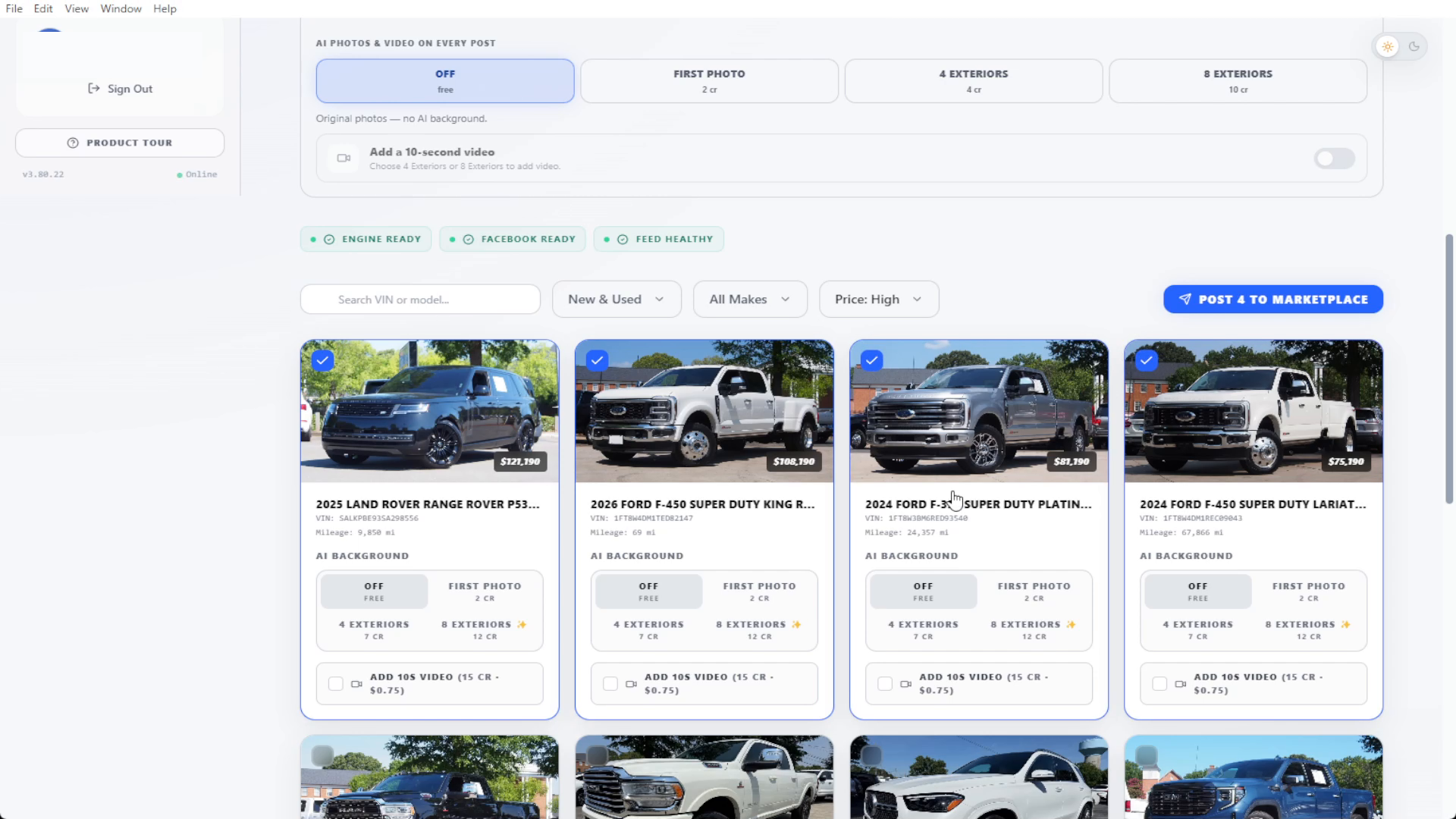
1 Selection box. 2 Selected count and posting control. 3 Optional AI treatment. Full-window recorded example. Open image for full resolution.
Select only the intended vehiclesClick the selection box on each card. Check the selected count on the posting button and the identity of every selected vehicle.
Choose the image treatmentUse Off for original images, or an optional AI treatment after reviewing the cost. Check daily posts remaining as well.
Start once, then follow the QueueFor real intended work, choose Post to Marketplace. Keep AutoLander running and use the Queue to follow the result.
Do not repeat the posting action just because progress is slow. The next page explains how to separate waiting, published and failed items.
Operate / Sales rep guide
Know what is actually finished
Post to Market > Queue. Read the individual vehicle row before the overall total.
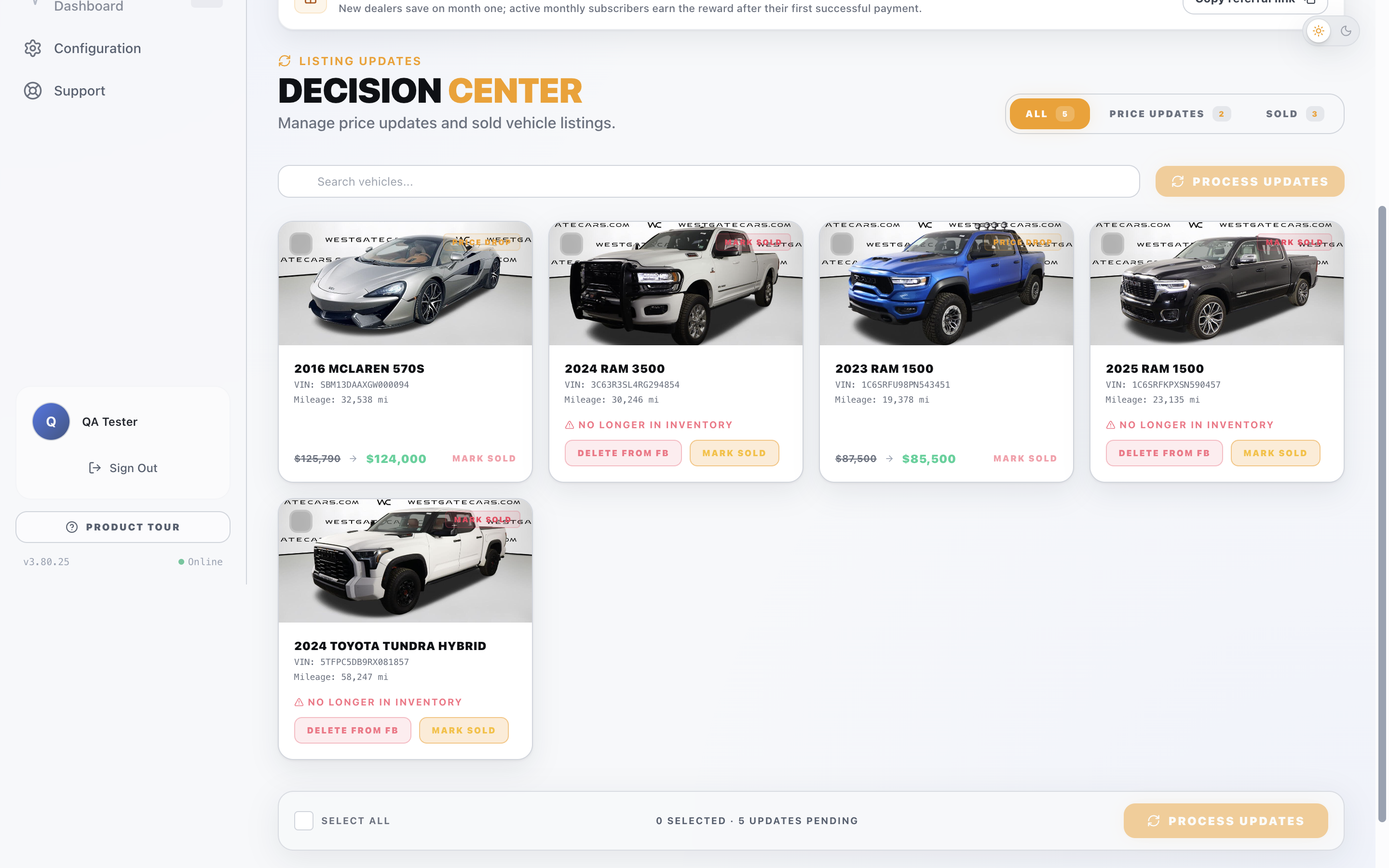
1 Price change. 2 Sold action. 3 Select All. 4 Process Updates. Recorded account example. Open image for full resolution.
Read the changeCompare old and new prices. For a no-longer-in-inventory card, check the identity and the action shown before choosing Mark Sold or Delete from FB.
Choose the intended itemsUse individual selection boxes, or Select All when every displayed change is intended. Check the selected count, then Process Updates.
Confirm each resultFollow the Queue to Done on the relevant row. After a successful price update, verify the new price on the matching listing. Read any failed row before retrying.
An empty updates page can simply mean there are no changes to process. If a known change is missing, check the source and listing match before treating it as complete.
Operate / Sales rep guide
Set Auto-Pilot for your routine
Post to Market > Auto-Pilot > Configure. Set it once, then check that it can run.
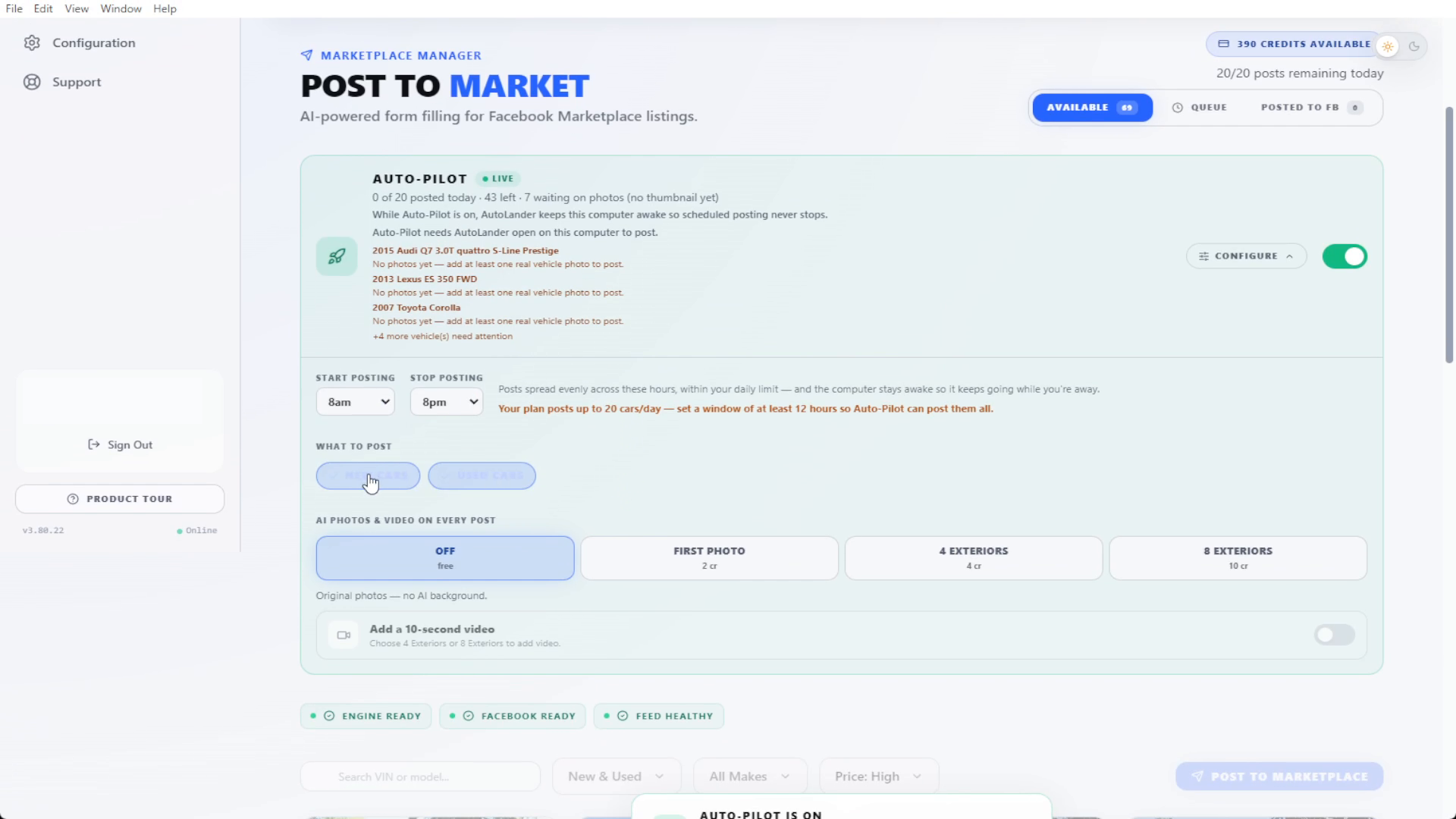
1 Schedule. 2 Inventory. 3 Photo choice. 4 On/off. This recorded account's allowance is an example, not every plan's limit. Open image for full resolution.
Choose the windowSet Start Posting and Stop Posting. Read the window guidance and the posting allowance for your own account.
Choose the inventory and photosSet which inventory to include and any optional photo treatment. Review its displayed credit cost.
Enable and checkTurn Auto-Pilot on and read its active state. It spreads posts through the selected window and handles supported price/sold changes on matching listings.
Check Facebook, the feed, Auto-Pilot and unfinished Queue rows each day and after a restart or connection loss. Outside the posting window, a waiting state can be expected. Do not assume instant updates or uninterrupted service.
Operate / Sales rep guide
Make the whole description useful
Configuration > Post Style. Shared dealership wording and your personal footer do different jobs.
Match the inventory source. Do not invent equipment or availability.
Dealer Playbook
Approved store information, services and fee wording.
Managers/admins set shared wording. Do not change team terms without agreement.
My Listing Additions
Your closing contact information at the bottom.
Use the approved message/bio/email approach. Check the email and visibility of anything referenced in your bio.
A quick quality check
Read the full descriptionAfter posting, expand the Facebook listing. Check features, optional emojis, store information, fees where applicable and the closing contact line.
Save and confirm your changesUse the edited section's save control. Reopen it to confirm the intended text, then verify the full description on an intended finished listing. Remove repeated lines or unusable contact details.
Keep the profile separateIf your listing says the phone number is in your bio, update and check the Facebook profile separately. Listing Additions does not do that for you.
To change your personal posting language, find My Posting Language in Post Style, select the intended option and choose Save Language. This is separate from the Language & Region tab. Customer conversations remain specific to the question, not scripted replies.
Operate / Sales rep guide
Posts and AI credits are different
Post to Market shows daily posts remaining and the optional AI credit balance.
Configuration > Billing; posts remaining in Post to Market
How many posts your account plan permits. Pro guidance for this edition is up to 15/day.
AI credits
Balance in Post to Market; cost beside each AI choice
Optional photo/video treatments. A credit pack does not automatically raise the posting allowance.
Original photos
AI Background set to Off
Uses the source photos without that optional AI treatment.
Before starting paid work
Read your accountCheck the current plan, remaining posts and intended selected count. Team arrangements can differ.
Read the optionCheck the cost shown beside your chosen treatment. Do not assume a price or credit cost from an old screenshot.
Get the right approvalA dealership rep asks the manager about limits, seats or spending. The account owner reviews current terms before confirming a purchase.
If the account display conflicts with what you expect, capture the plan name and the message without payment details. Ask the manager or AutoLander admin to clarify it before committing to a batch.
Operate / Sales rep guide
Use AI backgrounds intentionally
Choose the look in Post Style, then the treatment in Post to Market.
Choose a styleGo to Configuration > Post Style and find the background choices. Select the intended look.
Choose the treatmentIn Post to Market, find AI Background on the vehicle card. First Photo applies to the lead image; the other choices cover more exterior images. Leave it Off for original photos.
Read the costCheck the displayed credit cost before starting the intended post. A video add-on is available only when the on-screen eligibility permits it.
Check the finished listingThe generated result is visible after posting. Open the matching Marketplace listing and check whether it represents the actual vehicle accurately.
What to check in the result
The correct vehicle and color, with no misleading changes to condition or equipment.
Readable, accurate listing facts and a complete description.
A background that supports the vehicle rather than disguising a material detail.
Good source inventory still matters. Optional AI treatment is not a repair for wrong prices, missing mileage or inaccurate vehicle information. Use actual store-approved facts.
Operate / Sales rep guide
Groups and Delete and Repost
Two different tasks: choosing relevant groups and replacing an older listing.
Find the controlsConfiguration > My Groups > Load From Facebook, with Facebook connected.
Choose deliberatelySelect relevant local groups and read their rules. Choose Save Groups. Group administrators still control approval; a selection is not proof that a post will appear.
Replace an older listing intentionally
Check the vehicleConfirm that it is still available and the information is current.
Open the listingPost to Market > Posted to FB, next to Available and Queue. Find the vehicle and choose Repost.
Understand the blue controlDelete and Repost removes the original listing published through AutoLander and creates a fresh listing for that vehicle. Proceed only when that is the result you want.
For routine price and sold changes, use Listing Updates or Auto-Pilot. Do not repeatedly replace listings to chase placement. Follow the current Marketplace and group rules.
Succeed / Sales rep guide
Know where buyer messages arrive
Messenger is where the conversation happens. AutoLander is not an inbox or an auto-responder.
Open the right Messenger accountUse the account connected to your Marketplace profile on your computer or phone.
Check notificationsReview Messenger notifications and your device/browser notification permissions. If alerts are missing, also check a muted conversation or Do Not Disturb/Focus setting.
Confirm with a safe testUse a willing teammate and a test conversation to confirm that an incoming notification reaches the device you actually use. Never share a buyer's private message as training material.
Keep the conversation human
Read the specific question and check the facts you need before answering.
Give useful, accurate information in your own words. Do not guess availability or quote an unverified total.
Respect the buyer's preferred channel and pace. Do not pressure someone to provide a phone number or arrange a visit.
Follow through on any information you promise to check. Use the dealership's customer-handling and privacy process.
This guide intentionally contains no sample sales replies. It teaches the workflow and quality checks, leaving the actual conversation to you. Meta's notification controls can vary by app and device; use the current Messenger Help Center when labels differ.
Succeed / Sales rep guide
A steady daily routine
A short readiness check plus exception handling is more useful than watching every progress bar.
Confirm the correct account, Facebook connection and inventory.
Read unfinished Queue rows before starting new work.
For Auto-Pilot: check On, the schedule, internet and a running awake computer. For manual work: choose the intended vehicles and review Listing Updates.
While you work
Keep AutoLander able to run. After a restart or lost connection, recheck readiness.
Use Messenger for buyer questions and notice incoming notifications.
Answer using verified details and follow the dealership's customer-handling process.
Record exceptions with one vehicle and one clear message instead of restarting a whole batch.
Before handoff or the end of the shift
Review remaining work and anything you promised to check for a buyer.
Hand off the issue, owner and next step through the dealership's agreed process.
If Auto-Pilot is expected to continue, make sure the operating computer will remain awake, online and running the app.
If results are disappointing, first check accuracy, live coverage, notifications and follow-through. Change one controllable part of the process and review it consistently; do not assume more repeated posting guarantees more sales.
Troubleshoot / Sales rep guide
Quick help: start with the symptom
Find the smallest useful check. Leave working accounts and successful items alone.
AutoLander admin through Support in the left sidebar.
Cannot sign in to reach Support
Use [email protected]; confirm the address at autolander.ai/contact.
Managed installation restriction
Dealership IT, with the exact warning and official installer source.
Facebook login or Marketplace eligibility
Facebook's own account/help process. AutoLander cannot grant Facebook access.
Include enough to reproduce the problem
Account/dealership, your role, and one affected VIN or stock number when relevant.
The screen and step, what you expected, what happened, and the exact message.
Date/time with time zone; app version from Configuration > Updates; Windows or Mac version.
What you already tried, whether one vehicle or many are affected, and a screenshot with private information hidden.
Keep one report for the same issue and add new evidence to it. Avoid changing several settings while waiting; record any necessary change so the next person can follow the sequence.
Reference / Sales rep guide
Read the labels correctly
A small set of terms explains most of the workflow.
This manual follows the owner-corrected AutoLander training, the supplied full-window screenshots and the revised demo. The preserved screen examples show recorded accounts; vehicle counts, balances, dates and optional costs are not promises for your account.
The manual tells you where to go and what to check. The segmented course demonstrates the task. The workbook records your own practice. Watching a lesson or filling a field does not automatically confirm competence.
Reference review: September 19, 2026. This edition covers Windows and Mac workflows in the supplied course. Store policies and current account terms remain authoritative for your work. If a step no longer matches, report the screen and app version rather than guessing.
Start / Manager guide
Give every responsibility an owner
A reliable rollout starts with clear ownership, not more accounts or more training attendance.
Correct location, feed, vehicle facts and sold/price changes.
Who can correct the source and verify the resulting listing?
Account and access
Invitations, posting access, dashboard access and seat questions.
Who approves access and checks it after the invite?
Listing standards
Shared Playbook, approved terms, contact-footer rules and optional AI usage.
Who approves wording and corrections?
Daily operation
The awake online computer, running app, Auto-Pilot window and exception review.
Who checks after a restart or lost connection?
Buyer communication
Messenger notifications, customer follow-through and shift handoff.
Who owns the conversation? AutoLander does not answer it.
Learning and help
Observed task checks and unresolved setup problems.
Who coaches the next task or contacts Support?
Use this guide with the manager coaching workbook. The workbook captures individual evidence and follow-up; this manual is the standing operating reference.
Start / Manager guide
Your map of AutoLander
Start with the left sidebar. Find the task before changing a setting.
Confirm the account and computerUse the intended account on a Windows or Mac laptop/desktop. Download from autolander.ai. Windows may show SmartScreen; use only the normal permitted path. The rep manual, page 6, covers More info, Run anyway and the setup steps. A managed block goes to IT.
Connect Facebook appropriatelyThe posting user connects their own intended Marketplace profile through Configuration > Facebook, with private sign-in. A healthy connection does not prove a listing is published.
Establish the inventory sourceConfiguration > Inventory Feeds. Verify the correct location and three familiar vehicles before posting.
Approve listing standardsConfiguration > Post Style. Agree the shared Dealer Playbook, personal Listing Additions approach and optional image treatment.
Give the team the right accessConfiguration > Team. Check posting and dashboard permissions separately, invite the correct email, then verify the teammate can open the needed page.
Practice before routine operationUse safe locate/explain exercises first. For intended live work, verify one result and exceptions before relying on the routine.
Finish by agreeing who checks the run each day, who corrects source data, and who owns the next action if the setup is blocked.
Set up / Manager guide
Connect the correct inventory source
Configuration > Inventory Feeds > Add Feed. Website Scrape and Data Feed are separate routes.
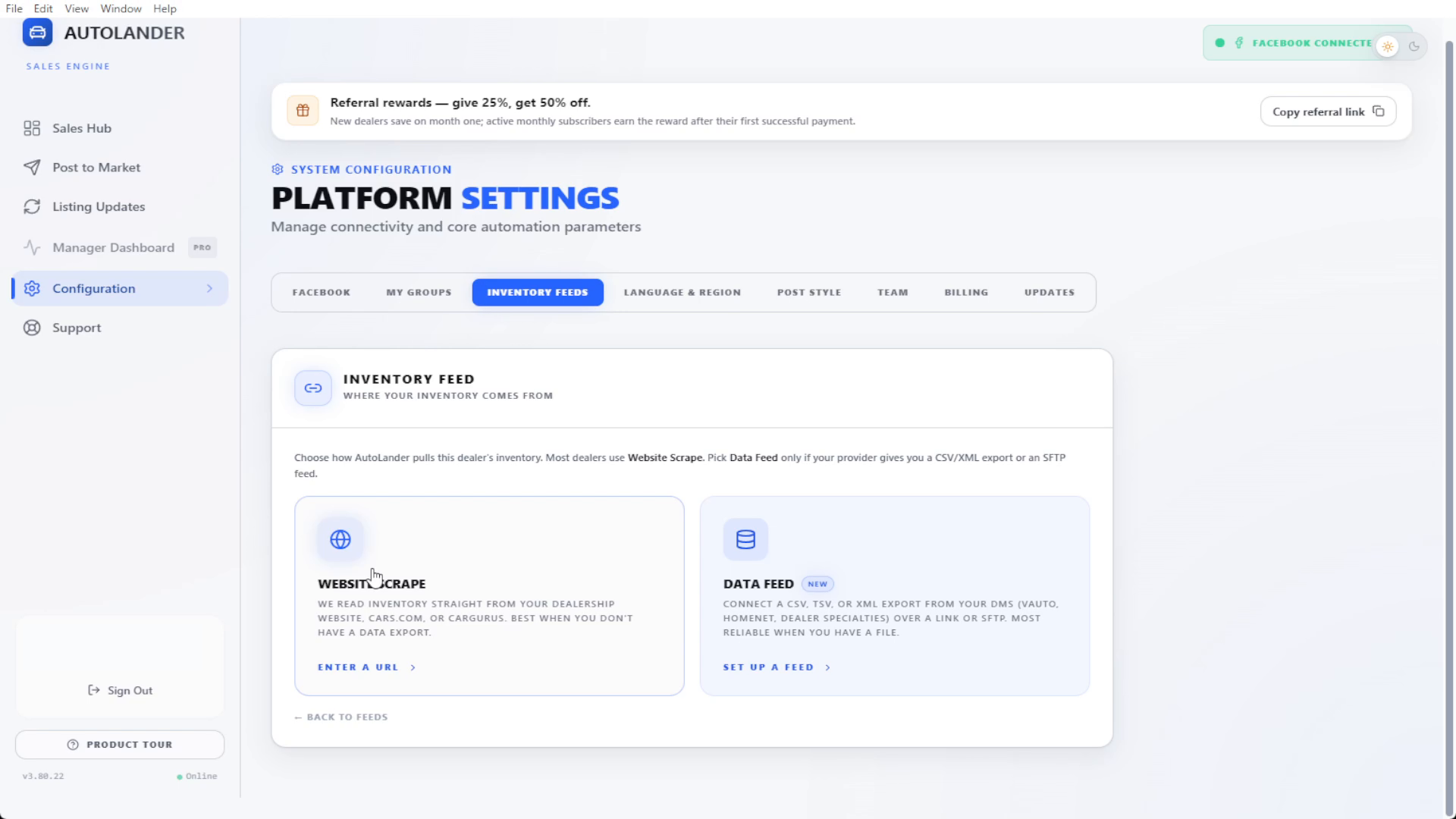
1 Configuration. 2 Inventory Feeds. 3 Enter a URL. 4 Set Up a Feed. Recorded source; use your own connection. Open image for full resolution.
For an inventory websiteChoose Enter a URL under Website Scrape. Paste the dealership inventory-page URL for a supported source such as CarGurus or Cars.com. Add the dealer name if needed, choose Verify, read the result, then Connect Website when ready.
For a provider feedUse the Data Feed route for the authorized file, feed link or SFTP details arranged with the provider. Confirm the actual handoff; vAuto is a custom feed/export route, not a promised one-click native connector.
Verify after loadingOpen Post to Market. Confirm the location and compare three familiar vehicles with the source. Clear filters before reporting omissions.
If the source is already correct, preserve it. A new feed is not the first fix for a missing vehicle. See the next page for a source-to-listing comparison.
Operate / Manager guide
Trace a mismatch to the right layer
Compare one vehicle across the approved source, AutoLander and the matching Facebook listing.
Vehicle identity, price, mileage, location or sold state at the source.
The dealership person responsible for that inventory record.
Source is right; AutoLander differs
Connected feed/location, filters, observed time and one VIN/stock number.
The manager or AutoLander admin investigates the connection.
AutoLander is right; Facebook differs
Matching AutoLander-posted listing, update row, Auto-Pilot readiness and actual Facebook result.
The operator handles the intended update or reports the exception.
Only an unrelated or old listing differs
Confirm who created it and whether it belongs to this workflow.
Do not assume AutoLander controls every listing on a profile.
Build a useful comparison
Record the same VIN or stock number in all three places.
Note the expected value, observed value and date/time with time zone.
Identify whether this affects one vehicle, one source or the whole location.
Keep a private-information-safe screenshot and the exact Queue/update message.
An empty updates page is not evidence that a specific known change completed. A successful sold update is not evidence that a different vehicle's price changed.
Set up / Manager guide
Approve the words buyers see
Configuration > Post Style. Shared store information should have one clear owner.
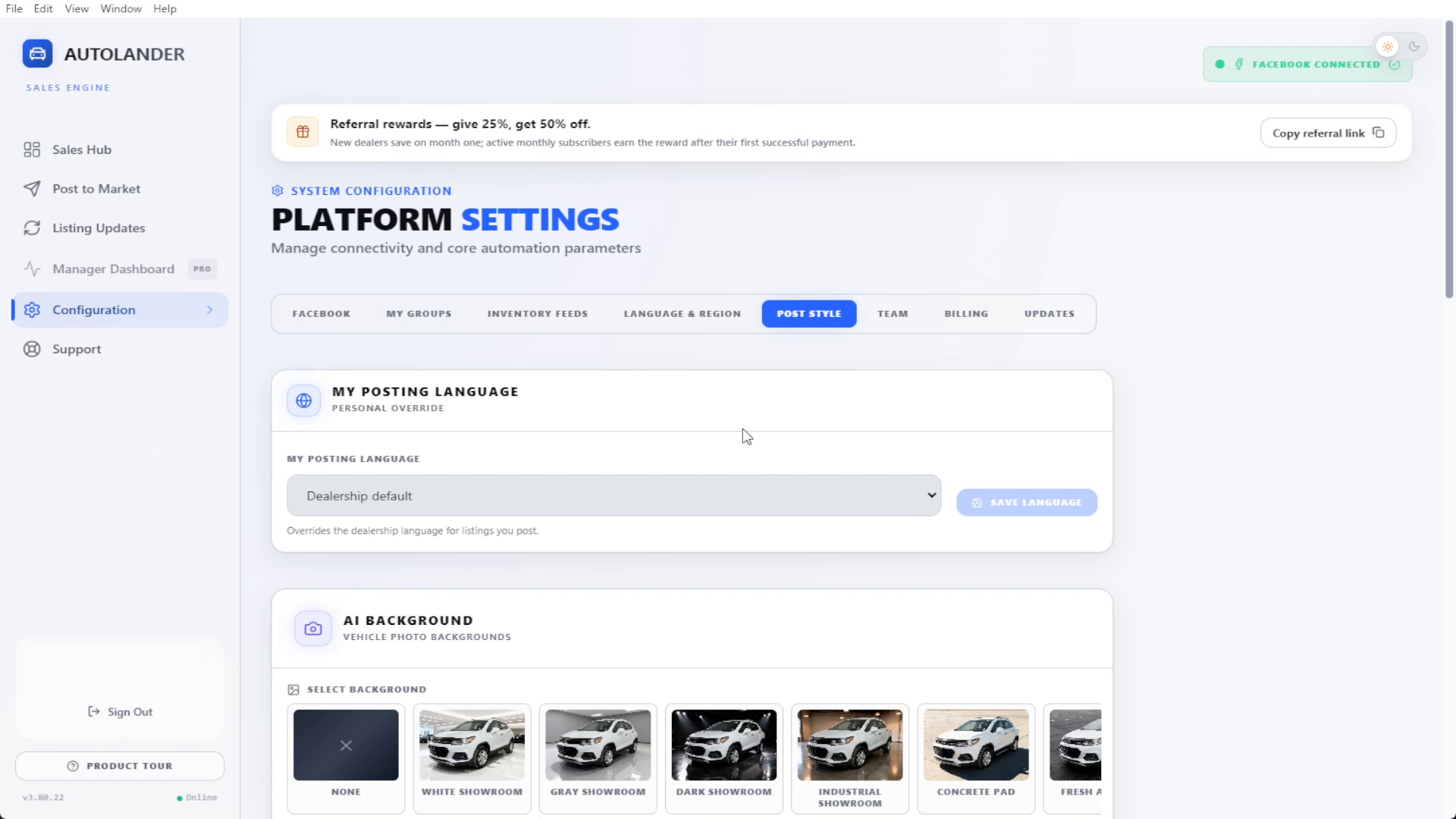
1 Configuration. 2 Post Style. Start here, then scroll to Dealer Playbook and My Listing Additions. Open image for full resolution.
Set the shared Dealer PlaybookUse clear, store-approved information: actual financing, trade-in and language services, plus applicable approved fee wording. Check the built-in example before replacing it.
Define personal Listing AdditionsAgree the closing message/bio/email approach. The footer belongs at the bottom of the description. A statement that a phone number is in the bio requires a separate Facebook profile check.
Save, then verifyUse each edited section's save control. Reopen it to confirm the intended wording. After an intended post, read the expanded description: facts, features/emojis, store information and footer. Remove duplication.
Keep a dated approved wording record and identify who can change it. This is a recommended internal practice, not a claim that AutoLander includes an approval-history feature.
Set up / Manager guide
Invite and verify the right access
Configuration > Team. Posting access and dashboard access are separate decisions.
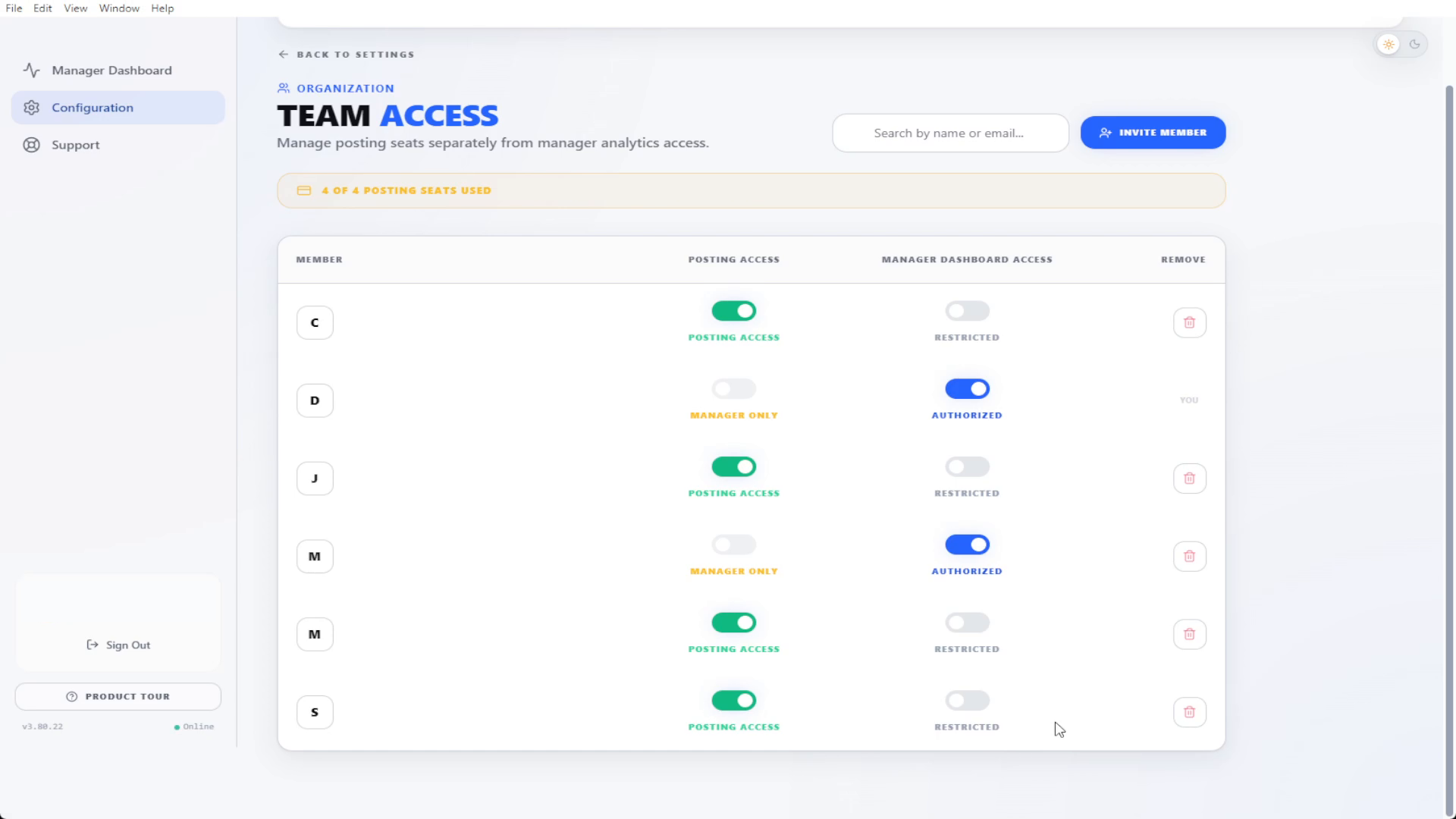
1 Posting Access. 2 Manager Dashboard Access. 3 Invite Member. Separate permissions in a recorded account. Open image for full resolution.
Inspect before invitingFind an existing teammate row. Check the correct account/email and whether the problem is access, not a missing invitation.
Match permissions to the jobA publishing rep needs Posting Access. A manager who reviews activity may need Manager Dashboard Access without posting access. Check the seat arrangement separately.
Invite the intended personChoose Invite Member and enter the correct email and role details. If adding a paid seat is required, have the account owner review the terms before confirming. Choose Invite only for the intended person.
Verify the resultHave the teammate check inbox/spam, follow the invitation, sign in and open the exact page they need. Each person uses their own login.
Troubleshoot / Manager guide
When a teammate cannot find a page
Check identity, access and seats as separate questions.
Confirm who is signed inUse the intended AutoLander account and dealership. A duplicate account may not have the original invitation or inventory.
Inspect the rowConfiguration > Team. Check the access assigned to that person, including Posting Access and Manager Dashboard Access separately.
Check the invitationVerify the email and have the teammate check inbox/spam. Use the existing account and invitation route rather than starting another subscription.
Verify after correctionAsk the teammate to sign in and show the needed page. Seeing the manager's own screen is not a test of the teammate's access.
Role changes and departures
Use your dealership's access-removal process and the current Team controls. Check posting and dashboard access separately. Review seat/billing effects with the account owner. If the correct control or effect is unclear, ask AutoLander Support before proceeding.
Never ask a teammate for their password or security code. For a managed computer, use the dealership's approved IT process rather than sharing personal logins.
Operate / Manager guide
Posts and AI credits are different
Post to Market shows daily posts remaining and the optional AI credit balance.
Configuration > Billing; posts remaining in Post to Market
How many posts your account plan permits. Pro guidance for this edition is up to 15/day.
AI credits
Balance in Post to Market; cost beside each AI choice
Optional photo/video treatments. A credit pack does not automatically raise the posting allowance.
Original photos
AI Background set to Off
Uses the source photos without that optional AI treatment.
Before starting paid work
Read your accountCheck the current plan, remaining posts and intended selected count. Team arrangements can differ.
Read the optionCheck the cost shown beside your chosen treatment. Do not assume a price or credit cost from an old screenshot.
Get the right approvalA dealership rep asks the manager about limits, seats or spending. The account owner reviews current terms before confirming a purchase.
If the account display conflicts with what you expect, capture the plan name and the message without payment details. Ask the manager or AutoLander admin to clarify it before committing to a batch.
Operate / Manager guide
Set Auto-Pilot for your routine
Post to Market > Auto-Pilot > Configure. Set it once, then check that it can run.
1 Schedule. 2 Inventory. 3 Photo choice. 4 On/off. This recorded account's allowance is an example, not every plan's limit. Open image for full resolution.
Choose the windowSet Start Posting and Stop Posting. Read the window guidance and the posting allowance for your own account.
Choose the inventory and photosSet which inventory to include and any optional photo treatment. Review its displayed credit cost.
Enable and checkTurn Auto-Pilot on and read its active state. It spreads posts through the selected window and handles supported price/sold changes on matching listings.
Check Facebook, the feed, Auto-Pilot and unfinished Queue rows each day and after a restart or connection loss. Outside the posting window, a waiting state can be expected. Do not assume instant updates or uninterrupted service.
Operate / Manager guide
Keep prices and sold status current
Left sidebar > Listing Updates. Start with the vehicle and the change, not the button.
1 Price change. 2 Sold action. 3 Select All. 4 Process Updates. Recorded account example. Open image for full resolution.
Read the changeCompare old and new prices. For a no-longer-in-inventory card, check the identity and the action shown before choosing Mark Sold or Delete from FB.
Choose the intended itemsUse individual selection boxes, or Select All when every displayed change is intended. Check the selected count, then Process Updates.
Confirm each resultFollow the Queue to Done on the relevant row. After a successful price update, verify the new price on the matching listing. Read any failed row before retrying.
An empty updates page can simply mean there are no changes to process. If a known change is missing, check the source and listing match before treating it as complete.
Succeed / Manager guide
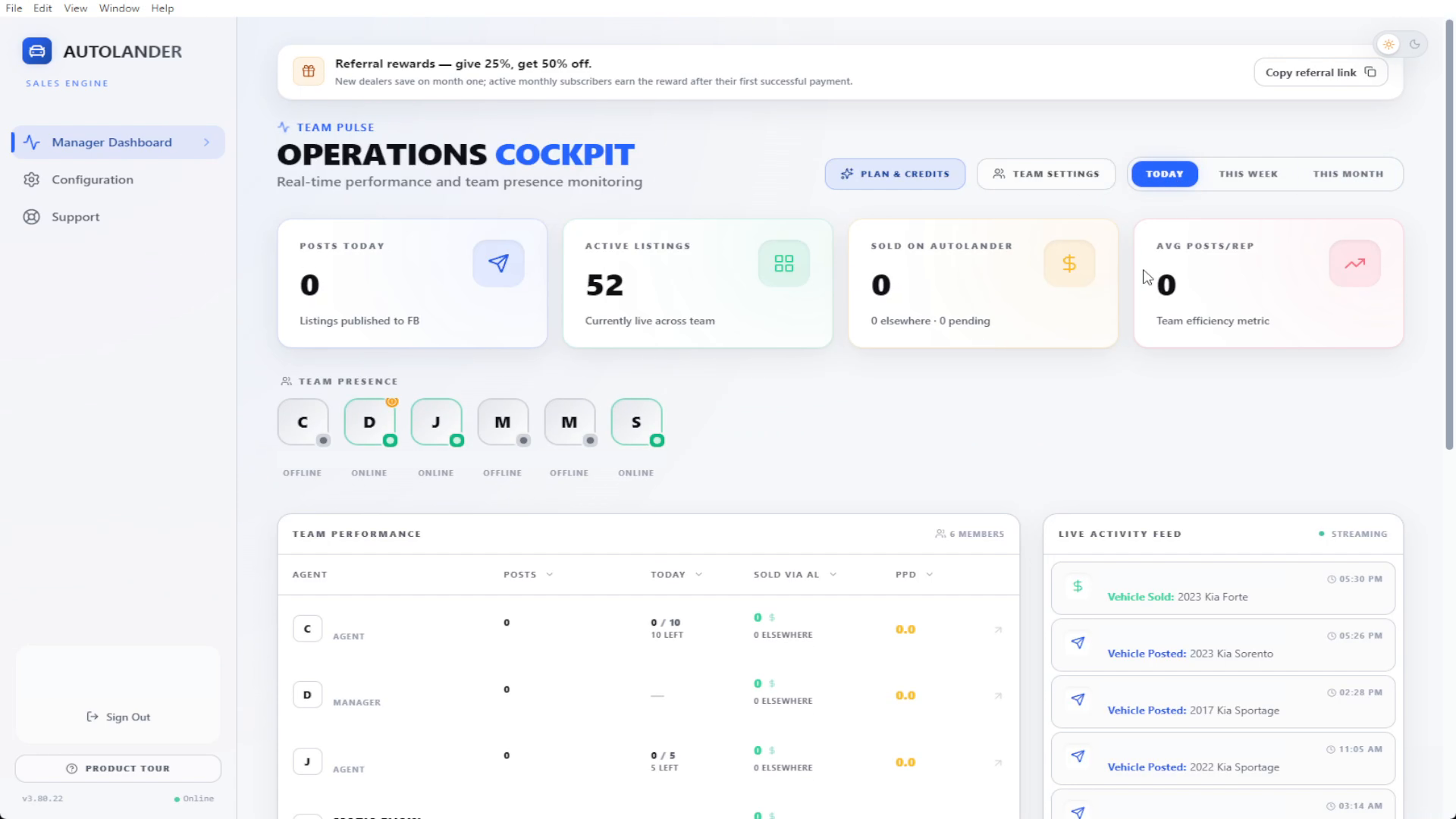
Use the dashboard to find the next task
Left sidebar > Manager Dashboard. Start by choosing the reporting period.
1 Manager Dashboard in the sidebar. 2 Reporting period. Recorded totals are examples, not targets. Open image for full resolution.
Choose a comparable periodUse Today, This Week or This Month. Keep the period consistent when comparing activity.
Read what the metric meansPosting activity, active listings and sold reporting describe different things. A reported sale alone does not explain what produced it.
Trace the exceptionAsk the teammate to show their last intended task in Post to Market > Queue. Check connection, inventory and access before concluding they need more effort.
Agree one next actionChoose a specific step, such as resolving a failed row or confirming the correct source. Recheck it during the next shift.
Succeed / Manager guide
Teach one task, then observe it
Replay the matching lesson. Ask the teammate to perform a different safe example.
Can locate, explain and complete the relevant safe check without prompting.
Use the same checks during intended live work and verify the outcome.
Needs coaching
Setup works, but a step or interpretation is unclear.
Replay the exact lesson; show once; ask for a fresh demonstration.
Blocked by setup/access
The person cannot attempt the task because a dependency is missing.
Assign the setup problem to an owner, with a next check.
Not my role
The task is outside that person's duties.
Record why and identify the responsible person if needed.
Good observation prompts
Locate the first-time Facebook route and the daily connection indicator.
Find a suitable vehicle and explain the selected count without posting.
Separate finished, unfinished and failed rows in an existing Queue example.
Explain one price/sold update and what result would confirm completion.
Show where incoming messages arrive and how notifications are checked. No copied reply is required.
Use the coaching workbook to record the demonstrated task, remaining gap, responsible person and next practice. Do not score a blocked setup as a failure of the learner.
Succeed / Manager guide
Build a role-specific learning route
Assign only the work that the person will actually perform. Add optional tasks when needed.
A0-A6, B1 existing-feed check, C4, C5, C6; C1 if assigned.
Correct account and source; selection; Queue; updates; notifications.
Individual account owner
Rep route plus B1 setup, B2, B5 and C1; C2/C3 when used.
Own setup, wording and balances, plus operational checks.
Manager / owner
A0/A1, B1-B5, A4/A5, C1, C5/C6.
Inventory and access verification, comparable reporting and one coaching action.
Dashboard-only manager
Navigation, B3/B4 and relevant quality/help checks.
Open the permitted dashboard and coach a task; no publishing required.
A practical rollout sequence
OrientUse the manual map and the matching short lessons. Let the learner locate each destination.
PracticeUse a safe example and record the outcome in the workbook.
Resolve blockersSeparate setup/access issues from learning gaps. Assign one owner.
Confirm transferDuring intended real work, verify the result using the same checks. Revisit the one task that still needs help.
Adapt the pace to the learner and store. This is a suggested rollout process, not a promise that every person will be fully competent after a fixed number of minutes or days.
Succeed / Manager guide
Set standards that improve the work
Keep the listing true, the workflow dependable and the customer experience helpful.
Correct location, vehicle, price, mileage and sold state.
Correct the source or investigate the specific source-to-listing mismatch.
Complete descriptions
Vehicle details, approved store terms and usable contact footer; no repeated lines.
Fix approved wording and verify the expanded listing result.
Honest imagery
Generated result still represents the actual vehicle.
Arrange correction of the published listing. Do not assume AI output is flawless.
Reliable execution
Running online computer, correct schedule and clearly understood Queue rows.
Resolve the dependency and verify the affected job; leave successful work alone.
Customer follow-through
Incoming messages noticed and factual questions addressed in the buyer's preferred channel.
Coach listening, verification and follow-through, not a canned sales response.
Use metrics as signals
A listing click is not necessarily a conversation. A conversation is not necessarily an appointment or a sale. Pair activity with verified listing quality and your dealership's own customer/outcome records. Do not attribute a sale solely to a counter or testimonial.
Succeed / Manager guide
Know where buyer messages arrive
Messenger is where the conversation happens. AutoLander is not an inbox or an auto-responder.
Open the right Messenger accountUse the account connected to your Marketplace profile on your computer or phone.
Check notificationsReview Messenger notifications and your device/browser notification permissions. If alerts are missing, also check a muted conversation or Do Not Disturb/Focus setting.
Confirm with a safe testUse a willing teammate and a test conversation to confirm that an incoming notification reaches the device you actually use. Never share a buyer's private message as training material.
Keep the conversation human
Read the specific question and check the facts you need before answering.
Give useful, accurate information in your own words. Do not guess availability or quote an unverified total.
Respect the buyer's preferred channel and pace. Do not pressure someone to provide a phone number or arrange a visit.
Follow through on any information you promise to check. Use the dealership's customer-handling and privacy process.
This guide intentionally contains no sample sales replies. It teaches the workflow and quality checks, leaving the actual conversation to you. Meta's notification controls can vary by app and device; use the current Messenger Help Center when labels differ.
Troubleshoot / Manager guide
Manager triage: find the responsible layer
Start with one affected example. Ask whether the problem is setup, source, execution or learning.
AutoLander admin through Support in the left sidebar.
Cannot sign in to reach Support
Use [email protected]; confirm the address at autolander.ai/contact.
Managed installation restriction
Dealership IT, with the exact warning and official installer source.
Facebook login or Marketplace eligibility
Facebook's own account/help process. AutoLander cannot grant Facebook access.
Include enough to reproduce the problem
Account/dealership, your role, and one affected VIN or stock number when relevant.
The screen and step, what you expected, what happened, and the exact message.
Date/time with time zone; app version from Configuration > Updates; Windows or Mac version.
What you already tried, whether one vehicle or many are affected, and a screenshot with private information hidden.
Keep one report for the same issue and add new evidence to it. Avoid changing several settings while waiting; record any necessary change so the next person can follow the sequence.
Operate / Manager guide
Keep the operation clear between shifts
Use a short internal handoff. Do not depend on one person remembering every exception.
What is expected to run?Name the operating computer, intended mode and schedule, and the person responsible for the daily check.
What is unfinished?Identify the existing Queue/update item and its exact state. Separate successful work from unresolved work.
What is the source of the issue?Include the one vehicle/source comparison and time checked, if relevant.
Who owns the next action?Assign the operator, inventory owner, manager, IT or AutoLander Support as appropriate.
How will completion be checked?Use the relevant row result and matching listing, or have the teammate demonstrate the formerly blocked step.
Keep the learning materials current
Bookmark autolander.ai/training as the one place for the latest library. Use its edition date and lesson IDs. When a screen or policy changes, record the mismatch and update the affected reference instead of circulating conflicting screenshots.
The local course player stores practice progress in that browser. It is not a shared employee record or an automatic certificate. Keep manager observations in your approved internal process.
Reference / Manager guide
Read the labels correctly
A small set of terms explains most of the workflow.
This manual follows the owner-corrected AutoLander training, the supplied full-window screenshots and the revised demo. The preserved screen examples show recorded accounts; vehicle counts, balances, dates and optional costs are not promises for your account.
The manual tells you where to go and what to check. The segmented course demonstrates the task. The workbook records your own practice. Watching a lesson or filling a field does not automatically confirm competence.
Reference review: September 19, 2026. This edition covers Windows and Mac workflows in the supplied course. Store policies and current account terms remain authoritative for your work. If a step no longer matches, report the screen and app version rather than guessing.
NO MATCH YET
Try the screen name or symptom.
Search for Queue, connection, credits, invitation or inventory. You can also open Quick help for the common checks.